

AutoFarm - Auto Potion
The window and its options
Section titled “The window and its options”-
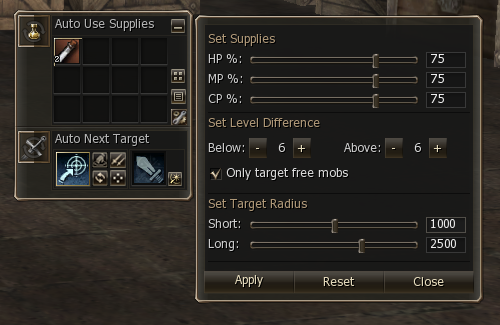
Auto Use Supplies: the slots where you place the HP, MP and CP potions the system consumes on its own.
-
Auto Next Target: the big button turns the auto farm on and off, and next to it there are 4 buttons:
- Pickup: picks up (or not) what mobs drop.
- Party leader assist: attacks the leader’s target instead of finding its own.
- Auto target ON / OFF: enables or disables automatic target search.
- Distance Short / Long: toggles between the short and long range.
-
The top-right button opens the Auto Farm status window (explained further below).
-
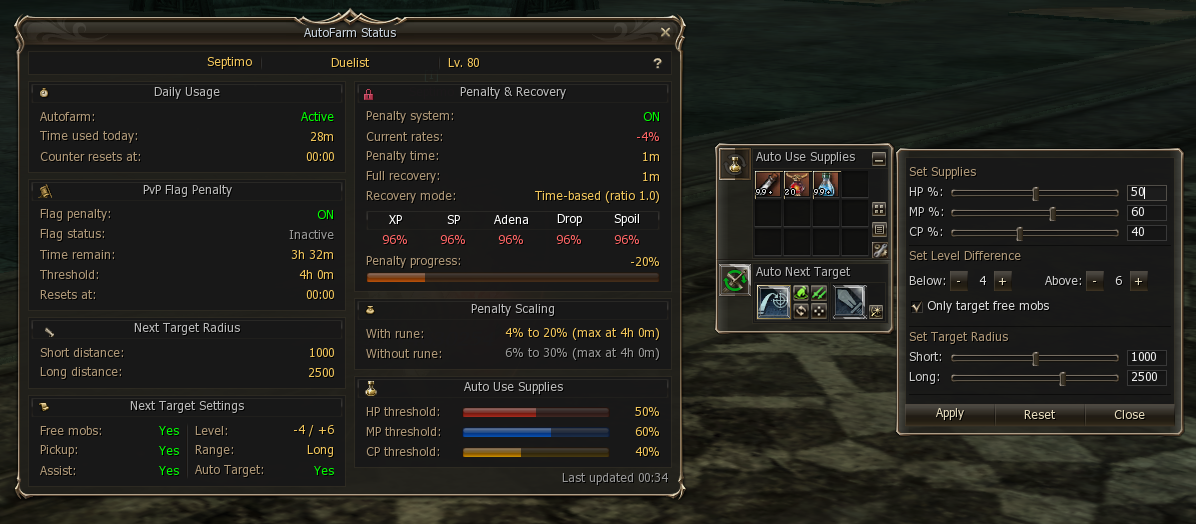
The wrench with gear opens the settings panel:
- Set Supplies: the HP, MP and CP % at which each potion starts being consumed.
- Set Level Difference: how many levels below (Below) and above (Above) yours a mob can be to get attacked, up to the maximum the server allows (6 levels on each side).
- Only target free mobs: ignores mobs another character is already fighting.
- Set Target Radius: the mob search range, with a short and a long mode.
- Apply / Reset / Close to save, restore defaults or close.
-
Auto Macros are disabled; only 1 works in the Auto Farm system.
Seeing the radius: the Auto Farm ring
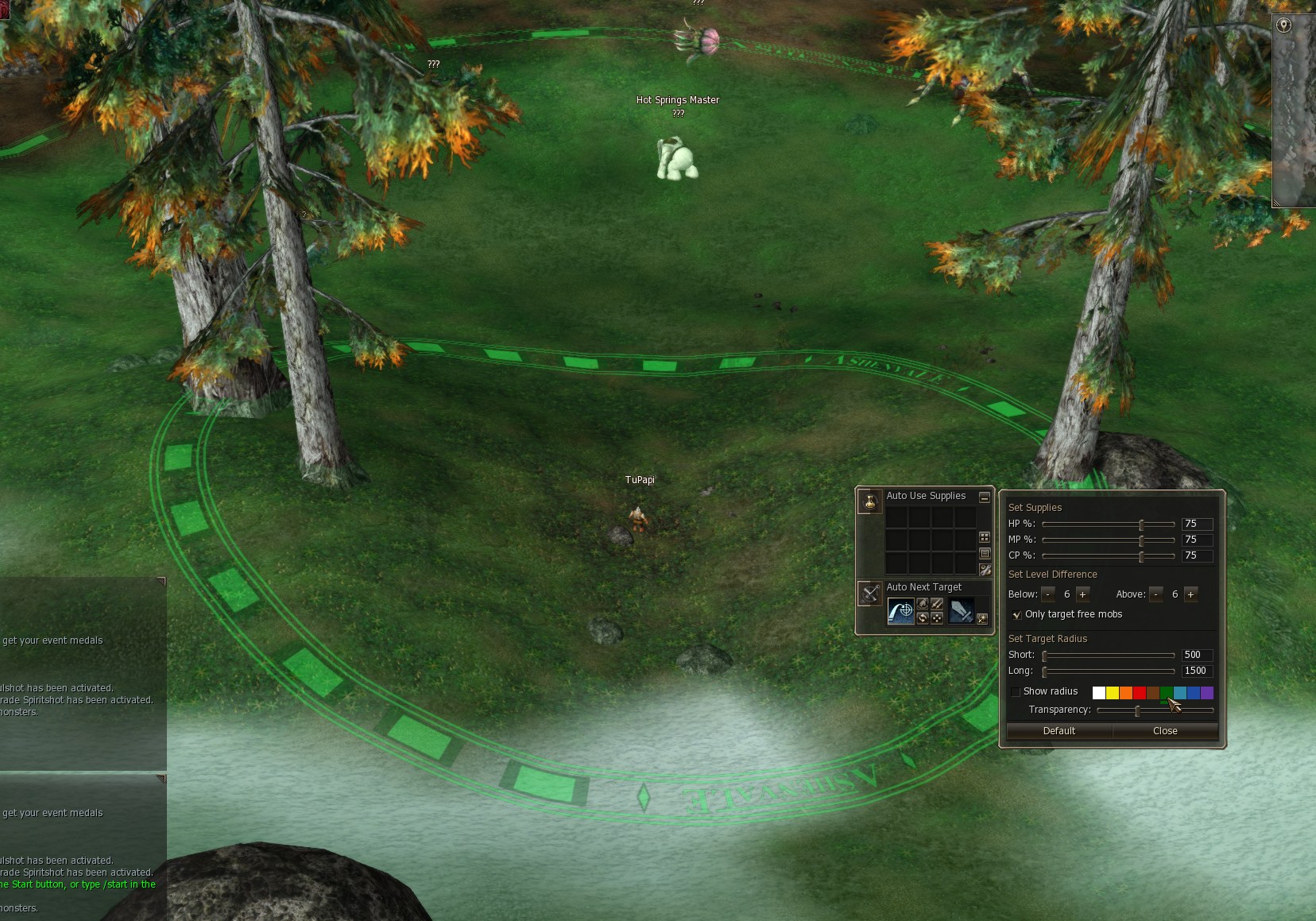
Section titled “Seeing the radius: the Auto Farm ring”You no longer have to guess the search range: the client draws a ring on the ground showing how far the auto farm will look for mobs. There is one ring for Short mode and another for Long, each with the radius you picked in Set Target Radius.
How it behaves:
- While you are configuring it (auto farm off), the ring follows your character for a few seconds so you can see the radius as you change the value.
- With the auto farm on, the ring stays fixed at the spot where you turned it on, which is the center it searches from and returns to when it finds nothing.
- When you toggle Distance Short / Long, the ring switches to the radius of the active mode.
From the same settings panel (the wrench with gear) you choose how it looks:
- Show radius: shows or hides the ring. Hiding it changes nothing about how it farms.
- The colors: click any of the little squares to pick the ring’s color.
- Transparency: how transparent it is drawn.
- Default restores the factory values.
The ring’s level of detail is set in Options → Video → Auto Target Radius (Low, Medium, High or Ultra). On a PC with a weak graphics card it is worth lowering it. See Ashenvale graphics options.
Auto farm behavior
Section titled “Auto farm behavior”- The auto farm kills mobs up to a maximum of 6 levels of difference.
- The auto farm flags you purple after 2 h. Unless you have the Auto Farm Rune, which gives you up to 4 h without turning purple.
- If another character (outside your party or Constant Party) is already fighting a monster, the auto farm leaves it and goes for a free one. You can change this with Only target free mobs in the settings.
- It records the loc where you turn the auto farm on: if it has no mobs to kill it returns to that same loc.
- If the monster is already spoiled, it does not cast Spoil on it again.
- It cannot be enabled if your experience is locked (Progress, in Character Status).
- It cannot be enabled while you are hitting an Epic or RB.
- The flag is held while the auto farm runs, and only drops 15 seconds after you switch it off.
Penalty for time in use
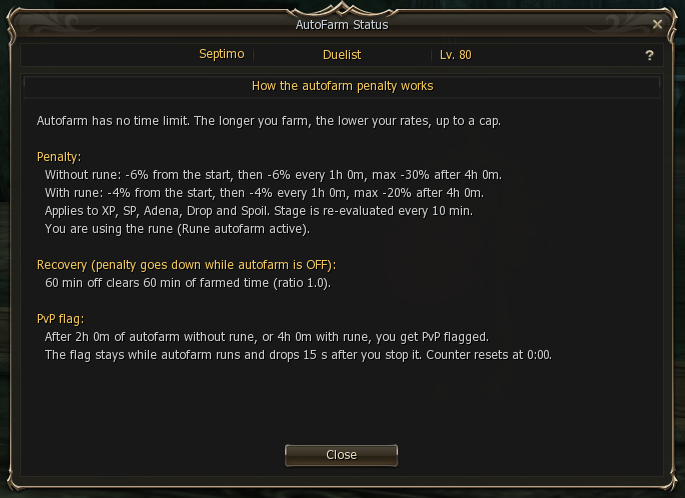
Section titled “Penalty for time in use”The auto farm lowers your rates the more accumulated time it stays on during the day. The penalty is tiered and starts as soon as it is enabled: a way of rewarding those who play actively.
The Auto Farm Rune (or the skill) does not remove the penalty, it reduces it on each tier.
| Accumulated time in the day | Without rune | With the Rune or skill |
|---|---|---|
| From the moment you turn it on | 6% | 4% |
| After 1 hour | 12% | 8% |
| After 2h | 18% | 12% |
| After 3h | 24% | 16% |
| After 4h | 30% | 20% |
How it goes up and down
Section titled “How it goes up and down”The penalty does not depend on the time of day but on a farmed-time counter that moves in both directions:
- It rises while the auto farm is on. As it accumulates you move through tiers and the rates drop.
- It falls while it is off. Recovery runs at 1:1 against farmed time: if you farmed 20 minutes, you need 20 minutes with the auto farm off to get back to zero.
No need to log out: keeping the auto farm off is enough. When you turn it on, the server tells you in chat which rates you are at and how much is left to fully recover.
Your status: the AutoFarm Status window
Section titled “Your status: the AutoFarm Status window”It opens from the status button on the Auto Farm interface. While you keep it open it refreshes on its own.
It shows the auto farm status of the character you are logged in with, split into blocks. With the auto farm off it looks like this:
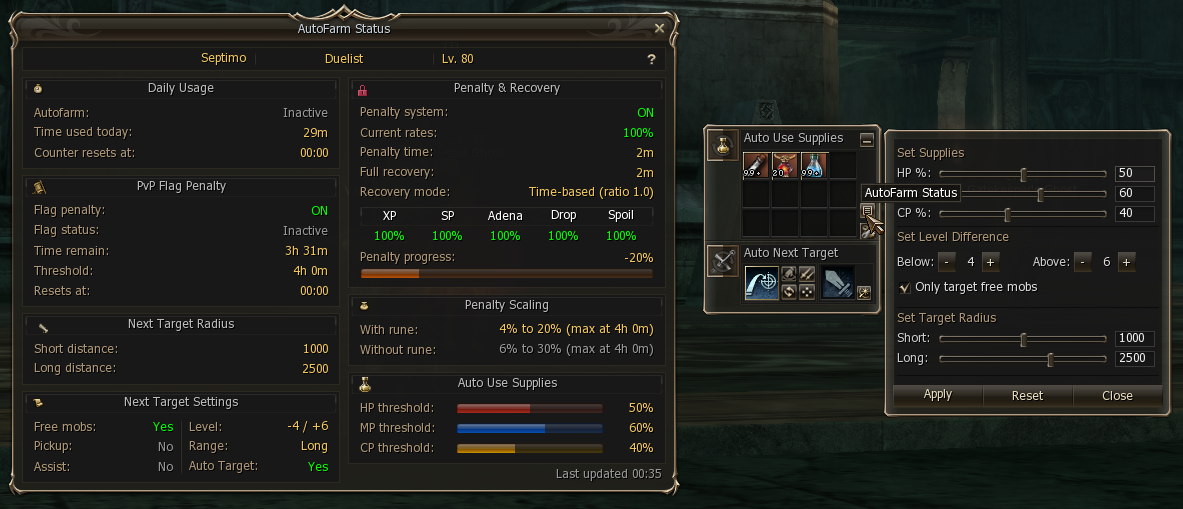
- Daily Usage: whether it is active, the time used in the day and when the counter resets.
- PvP Flag Penalty: whether the system is on (Flag penalty), whether you are flagged right now (Flag status, a different thing), how much auto farm you have left before it triggers (Time remain — not the time you have used), your threshold and when the counter is wiped.
- Penalty Scaling: the two penalty scales, with and without the rune, and when they reach the cap. The one that applies to you is shown in gold and the other in grey, so you know whether you have the rune reduction or not.
- Next Target Radius and Next Target Settings: the short and long ranges, the level difference, whether you only attack free mobs, and whether you are picking up drop or assisting.
- Penalty & Recovery: your current XP, SP, Adena, Drop and Spoil rates, the penalised time, how much is left to recover and the recovery mode.
- Auto Use Supplies: the HP, MP and CP thresholds you have set.
With the auto farm running, the parts that depend on the moment change: Autofarm turns to Active, the rates drop to whichever tier you are in, and Full recovery starts counting.
The ? button at the top right opens the explanation of the system, with your own numbers: how much it drops per tier, how often it is re-evaluated, how it recovers and when it flags you.