


Telegram Bot
The Telegram bot tells you on your phone what is happening to your character and on the server, whether you are playing or not: when your account logs in or out, when something sold in your private store, when an epic spawns or a siege starts.
In game you will find it in the Community Board (alt+b), under Settings, with the name “Telegram”.
Linking it
Section titled “Linking it”You do this once, and it takes three steps: open the bot, ask it for the code, and type that code in game.
1. Getting to the settings
Section titled “1. Getting to the settings”On the Community front page, in your character’s box, there is a Settings button.
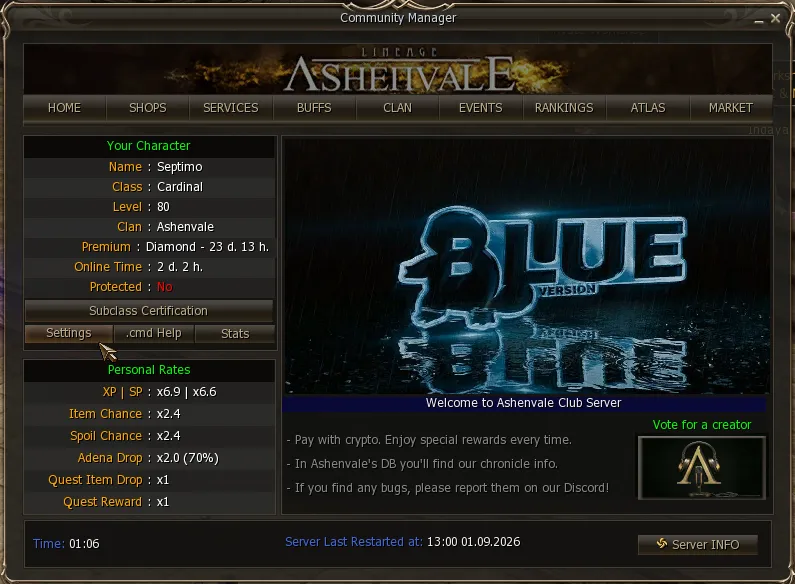
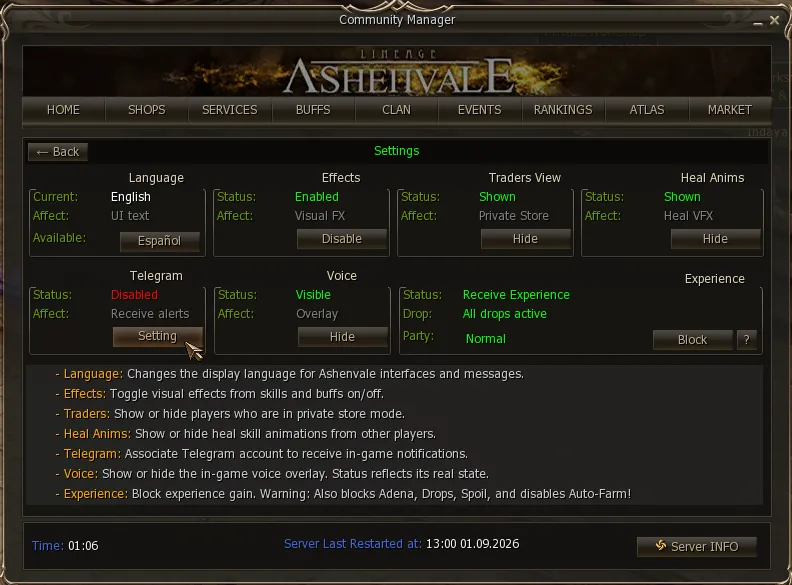
That opens the Telegram Link Service, which is where everything happens.
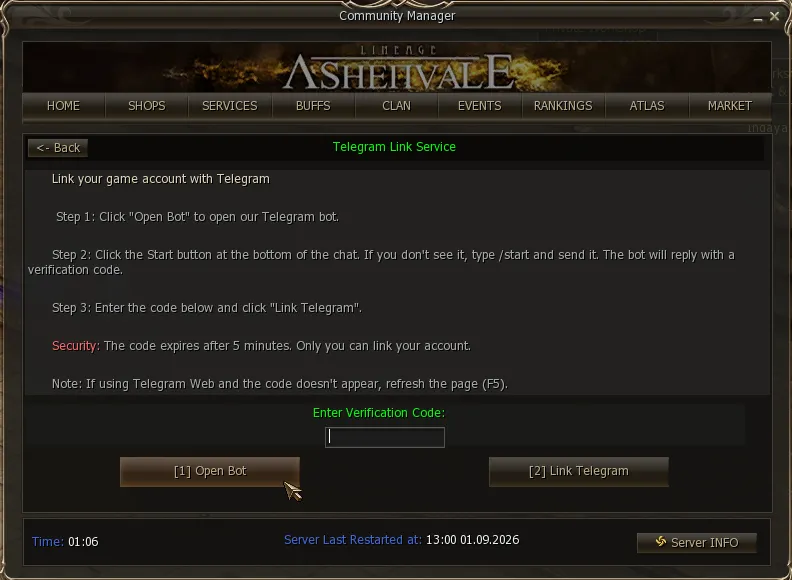
2. Opening the bot and asking for the code
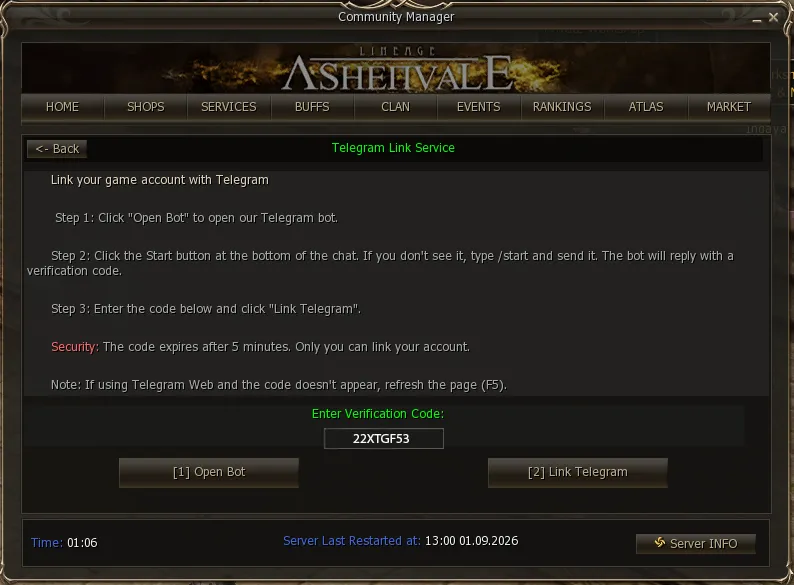
Section titled “2. Opening the bot and asking for the code”[1] Open Bot opens the Ashenvale bot — @l2ashenvale_bot. You can get in through the browser or through the app, if you have it installed.
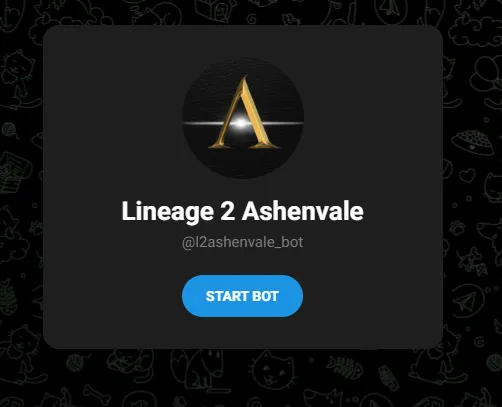
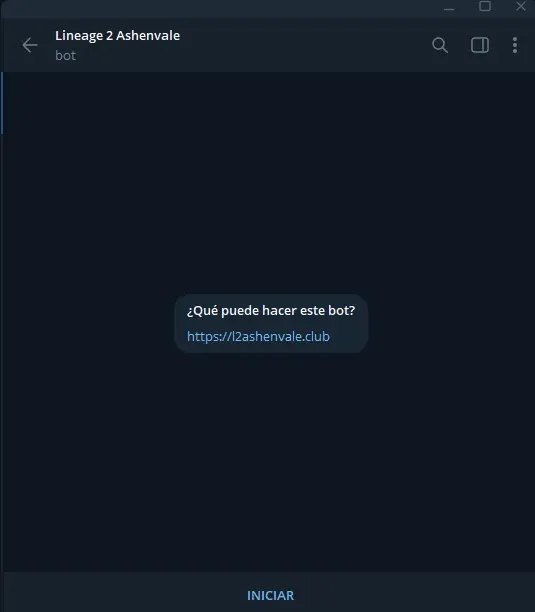
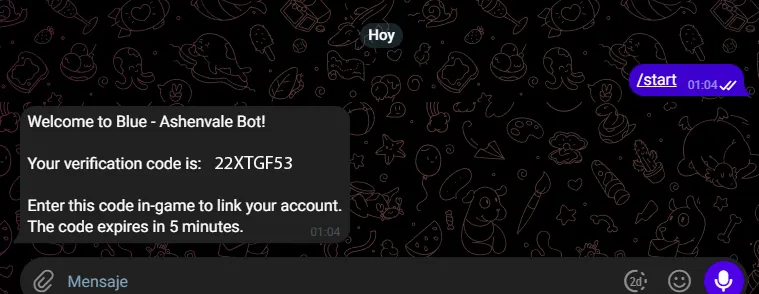
/start by hand.The bot replies with your verification code.
3. Typing the code in game
Section titled “3. Typing the code in game”You copy it into the Telegram Link Service field and press [2] Link Telegram.
Which alerts arrive
Section titled “Which alerts arrive”Once the account is linked, the panel switches to showing the full notification list. They all come switched on, and you turn them on and off one by one.
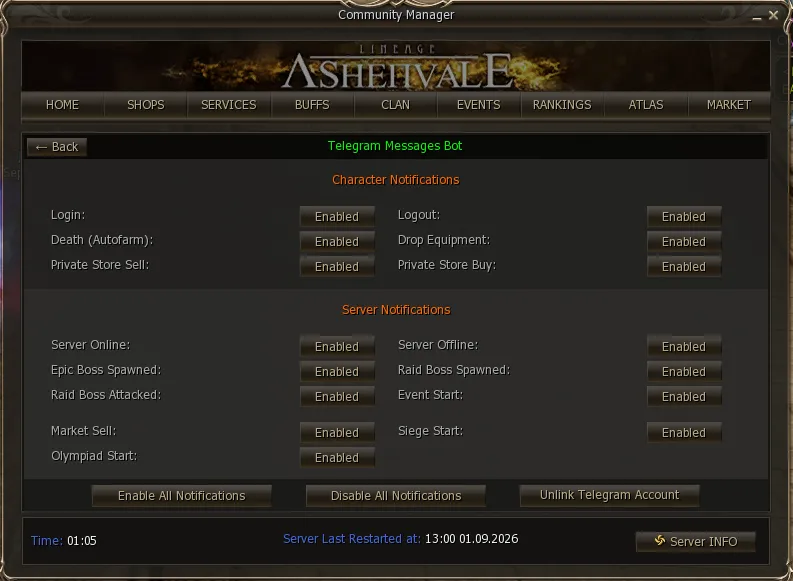
They are split into two groups:
| Your character |
|---|
| Login |
| Logout |
| Death while in Autofarm |
| Gear dropped |
| Sale in your private store |
| Purchase in your private store |
| The server |
|---|
| Server online |
| Server offline |
| Epic spawned |
| Raid Boss spawned |
| Raid Boss attacked |
| An event starts |
| A siege starts |
| The Olympiad starts |
| Sale in the Market |
The ones about your character are the most useful while you are away from the game: finding out that someone logged into your account, that your character died farming, or that somebody bought from you while you were in store mode.
The server ones are so you do not miss anything: that it came back after a restart, that an epic appeared, or that a Raid Boss was attacked — that last alert is the one that gets you there in time.
At the bottom there are two shortcuts: Enable All Notifications and Disable All Notifications, to switch everything on or off at once.
From Options → Telegram
Section titled “From Options → Telegram”All of this can also be done from the client, without going into the Community: Menu → Options → Telegram.
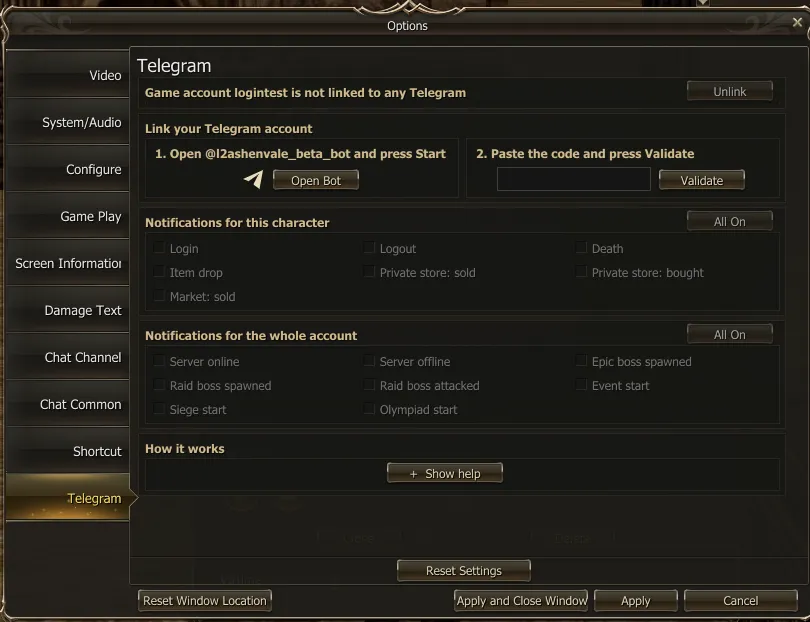
- Link your Telegram account: the same two steps. Open Bot opens the bot and, with the code it gives you, paste it in the box and press Validate.
- Notifications for this character: the alerts for this character (Login, Logout, Death, Item drop, Private store: sold / bought, Market: sold).
- Notifications for the whole account: the server alerts, for the whole account (Server online / offline, Epic boss spawned, Raid boss spawned / attacked, Event start, Siege start, Olympiad start).
- All On turns on everything in that block, and Unlink unlinks the account.
- Show help explains how it works without leaving the game.
Unlinking
Section titled “Unlinking”In the same panel, the Unlink Telegram Account button cuts the link: the alerts stop and the account is free again.
To use it again you have to go through the whole process from scratch, with a new code.