


Graphics options
Everything you see in the game is set in Menu → Options → Video. The tab mixes the game’s usual options with others we added (marked Ashenvale): this page goes through them top to bottom, in the same order as the window.
A few things apply to all of them:
- They are saved on your PC, not on the account: they work for any character that logs in from that PC.
- They are applied with Apply or Apply and Close Window. Cancel (or closing without applying) puts them back.
- They work the same with Vulkan, DirectX 9 and DirectX 12. The render mode is not chosen here but in the launcher: Render mode.
Default Settings
Section titled “Default Settings”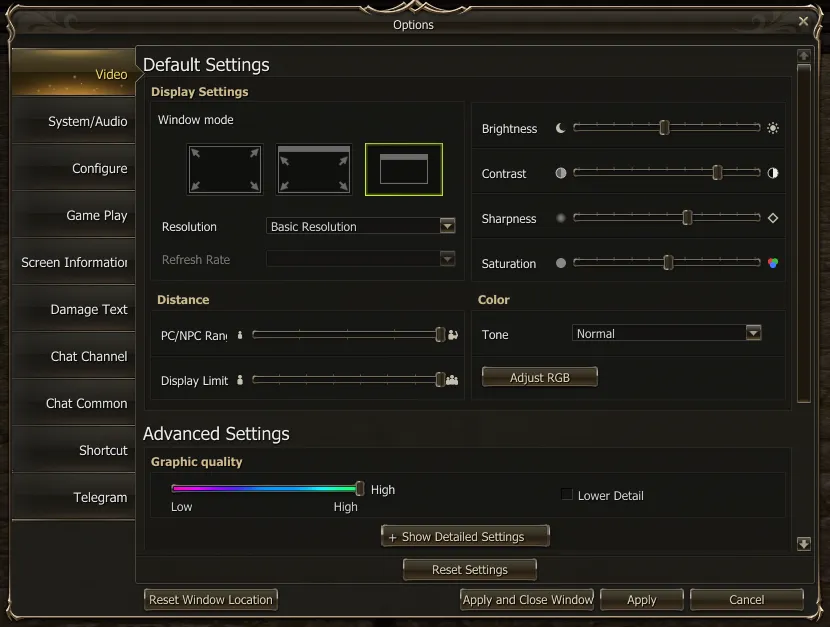
Display Settings
Section titled “Display Settings”- Window mode: the three boxes are Full Screen Mode, Window mode and Full Window Mode (a borderless window the size of your desktop). In Full Window Mode the Resolution is grayed out, because it uses your desktop’s.
- Resolution and Refresh Rate: the usual ones.
Image: Brightness, Contrast, Sharpness and Saturation
Section titled “Image: Brightness, Contrast, Sharpness and Saturation”| Option | What it does | No change |
|---|---|---|
| Brightness | The game’s usual brightness. | — |
| Contrast (Ashenvale) | The difference between light and dark areas. | middle |
| Sharpness (Ashenvale) | Left softens, right sharpens edges. | middle |
| Saturation (Ashenvale) | Color intensity. | middle |
- While you drag the slider you already see the change, before applying.
- They change the scene, not the windows: the interface, the chat and the names always look the same.
- If you overdid it, Reset Settings puts them back to no change (see below).
Distance
Section titled “Distance”- PC/NPC Range: how far away characters and NPCs are drawn.
- Display Limit: how many characters are drawn at once.
They are the game’s own, together in their own box. They are the ones that take the most load off your card in a packed town, a siege or an epic boss: fewer characters drawn, less work per frame.
Color (Ashenvale)
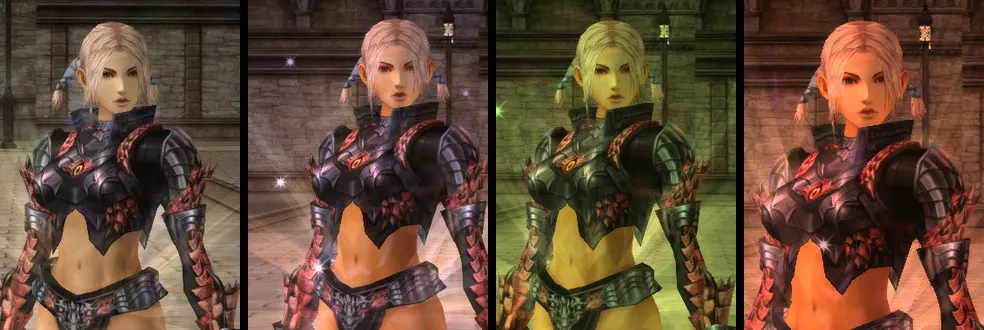
Section titled “Color (Ashenvale)”Tone changes the color of the whole scene without touching the brightness:
| Tone | How it looks |
|---|---|
| Normal | Like the original game. |
| Cold | Bluer, with much less orange. |
| Natural | Slightly cooler than Normal, with less orange: the middle ground. |
| Warm | Redder and less blue. |
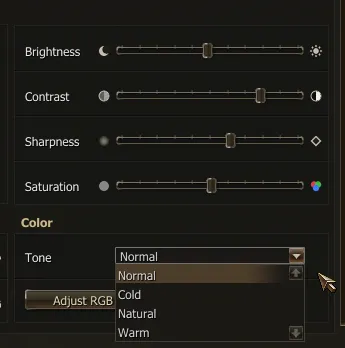
Adjust RGB opens three sliders, Red, Green and Blue, for a fine adjustment on top of the tone you picked; the middle leaves them unchanged. Restore puts them back in the middle and Hide RGB closes them.
Advanced Settings
Section titled “Advanced Settings”Graphic quality
Section titled “Graphic quality”The Graphic quality bar (Low, middle, High) sets almost every option below in one go. You can then tweak any of them by hand. The Lower Detail box drops everything to the minimum to keep the frame rate up, and unticking it brings back what you had.
| Option | High | Middle | Low | Lower Detail |
|---|---|---|---|---|
| Anti-Aliasing | the most your card allows | 2X (if your card supports it) | none | none |
| Anisotropic Filter | 16X | 8X | 4X | none |
| Texture | High | Average | Low | Low |
| Distant Textures | High | Normal | Normal | Normal |
| Modeling Detail | High | High | Low | Low |
| Motion Detail | High | High | Low | Low |
| Effect | High | Average | Low | Low |
| Shadows | on | off | off | off |
| Ground Detail | on | on | off | off |
| Weather Effects | High | Average | none | none |
| Shader | — | — | — | none |
| Terrain Range | Very Wide | Average | Very Narrow | Very Narrow |
| Reflections | All | Sky | none | none |
| Advanced Shader Effects | on | on | off | off |
| Use Out Focusing Effects | on | off | off | off |
| Use Realistic Water Effects | on | off | off | off |
No level sets Distant Textures to Maximum: it is only chosen by hand.
Show Detailed Settings opens the three boxes below. Each has its own dropdown at the top (Performance Settings, Environmental Settings, Visual Effect Settings) that switches only that box to High, Average or Low.
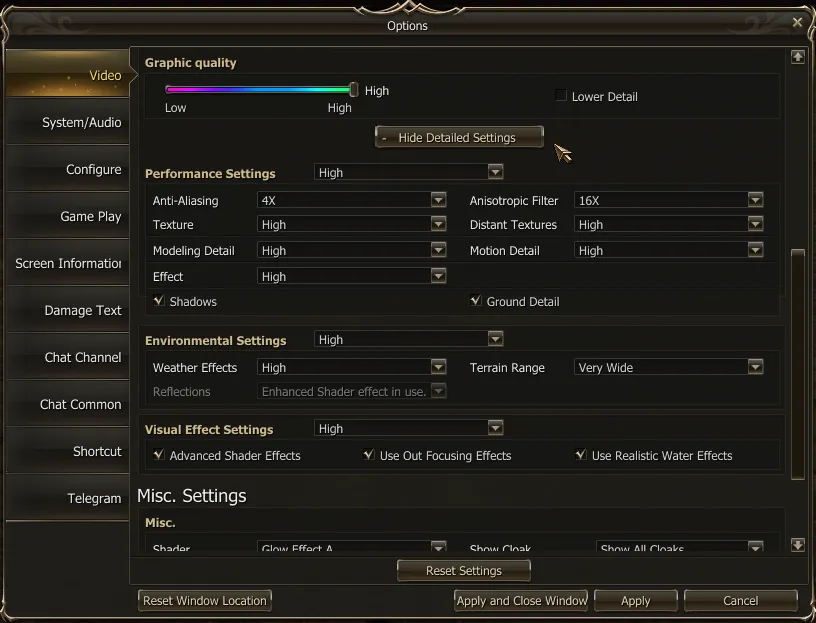
Performance Settings
Section titled “Performance Settings”| Option | What it does |
|---|---|
| Anti-Aliasing | Smooths the jagged edges of characters and objects. none, 2X or 4X, up to what your card supports. |
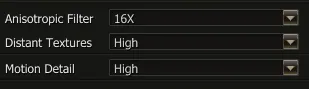
| Anisotropic Filter (Ashenvale) | Sharper floors and walls in the distance, especially at an angle. none, 4X, 8X or 16X (16X by default), up to what your card supports. |
| Texture | Texture quality: High, Average or Low. |
| Distant Textures (Ashenvale) | How much detail textures keep in the distance: Normal (the game’s), High (default) or Maximum. |
| Modeling Detail | The quality of character and object models. |
| Motion Detail | The quality of animations. |
| Effect | The quality of effects. |
| Shadows | Shadows of characters and objects. |
| Ground Detail | The scenery’s decoration objects. |
Environmental Settings
Section titled “Environmental Settings”| Option | What it does |
|---|---|
| Weather Effects | Rain, snow and other weather: none, Low, Average or High. |
| Terrain Range | How far the terrain is drawn: from Very Narrow to Very Wide. |
| Reflections | What the water reflects: none, Sky or All. With Advanced Shader Effects ticked it is grayed out and reads Enhanced Shader effect in use. |
Visual Effect Settings
Section titled “Visual Effect Settings”| Option | What it does |
|---|---|
| Advanced Shader Effects | Uses the game’s improved shaders. |
| Use Out Focusing Effects | Blurs the distant background. |
| Use Realistic Water Effects | More detailed water. |
Misc. Settings
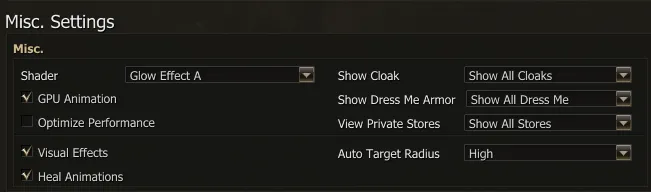
Section titled “Misc. Settings”At the bottom of the tab, in Misc. Settings → Misc. The ones on the right and the two at the bottom left choose what you see of other players, and they are among the most helpful in crowded areas.
| Option | What it does |
|---|---|
| Shader | Scene glow: none, Glow Effect A or B, and if your card supports it, HDR Rendering A, B or C. |
| GPU Animation | Animations are computed by the graphics card. Best left ticked. |
| Optimize Performance | Gives fewer resources to the programs you have open in the background. |
| Show Cloak | Show All Cloaks, Show My Cloak Only or Do Not Show Cloak. |
Show Dress Me Armor (Ashenvale)
Section titled “Show Dress Me Armor (Ashenvale)”Chooses whose armor skins from Dressme you see:
| Option | What you see |
|---|---|
| Show All Dress Me | Everyone’s armor dressme (default). |
| Show My Dress Me Only | Only yours; everyone else shows their real armor. |
| Do Not Show Dress Me | Nobody’s, not even yours: everyone in their real armor. |
It only affects what you see: if you choose not to see it, others still see your skin. It applies at once, without relogging. Cloaks and mounts are not turned off.
View Private Stores (Ashenvale)
Section titled “View Private Stores (Ashenvale)”Private stores are the heaviest thing in a packed town. There are three modes:
| Option | What you see |
|---|---|
| Show All Stores | Stores as always: character, box and sign with the title. |
| Hide Store Signs Only | The store character, without the box or the title sign. It takes quite a bit of load and rendering off. |
| Do Not Show Stores | Stores are not loaded: characters in store mode do not show up. It is the lightest mode. |
Hiding them does not stop you from buying: listed stores can still be found from the Community Board (alt+b) → Private Stores, including the Go to Store button.
Visual Effects and Heal Animations (Ashenvale)
Section titled “Visual Effects and Heal Animations (Ashenvale)”- Visual Effects: shows or hides other players’ cosmetic visual effects.
- Heal Animations: shows or hides the heal and recovery animations other players cast.
Turning them off clears up the screen a lot in raids, sieges and mass PvP. Your own effects are always shown.
Auto Target Radius (Ashenvale)
Section titled “Auto Target Radius (Ashenvale)”The level of detail of the Auto Farm ring: Low, Medium, High or Ultra. Lower means less load on your card.
Reset Settings
Section titled “Reset Settings”Reset Settings (at the bottom of the tab) puts everything back to default: 16X, Distant Textures at High, and contrast, sharpness and saturation in the middle. It does not kick you out of windowed mode: it keeps the window mode, the resolution and the refresh rate.
What depends on your graphics card
Section titled “What depends on your graphics card”Some options only offer what your card can do. If you see fewer values than this page lists, that is why, and it is not a bug:
| Option | What happens |
|---|---|
| Anti-Aliasing | The list goes up to what your card supports (2X or 4X). Without support, only none. |
| Anisotropic Filter | The list goes up to what your card supports. Without support, it stays at none and grayed out. |
| Shader | HDR Rendering A, B and C only show up if your card supports HDR. |
| Contrast, Sharpness, Saturation and Color | They use a Windows component. On a stripped-down Windows or an old Wine it may be missing: then they do nothing and everything else keeps working. |
| Reflections | Grayed out while Advanced Shader Effects is ticked (not card-related). |
| Resolution | Grayed out in Full Window Mode, which uses your desktop’s. |
And the limits of our sliders, so you know how far each one goes:
| Option | Far left | Middle | Far right |
|---|---|---|---|
| Contrast | 20 % less | no change | 40 % more |
| Saturation | 20 % less | no change | 30 % more |
| Sharpness | softest | no change | sharpest |
| Red / Green / Blue | 15 % less of that color | no change | 15 % more of that color |
If the game runs slow
Section titled “If the game runs slow”From what helps the most to what helps the least:
- Display Limit and PC/NPC Range: lower them a couple of notches in crowded areas.
- View Private Stores on Hide Store Signs Only or Do Not Show Stores.
- Visual Effects and Heal Animations unticked.
- Show Dress Me Armor on Show My Dress Me Only and Show Cloak on Show My Cloak Only.
- Shadows and Anti-Aliasing off.
- Graphic quality in the middle or at Low, and if that is not enough, Lower Detail.
If the problem is not the frame rate but the game not starting, closing or showing a black screen, that is the render mode: see Render mode in the launcher guide.