


Ashenvale Market
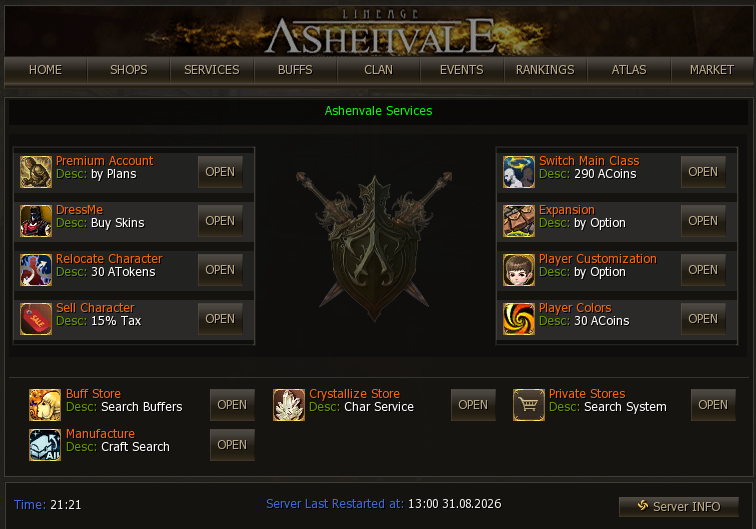
The server’s market, known in game as “ASHENVALE MARKET”, lets you list what you have spare and buy what you are missing, without standing in Giran shouting into chat. It opens from the community (alt+b), the MARKET button on the top bar:
Rules and fees
Section titled “Rules and fees”Items that cannot be listed
Section titled “Items that cannot be listed”On top of everything non-tradeable, these items are blocked on the Market: Bone Arrow, Steel Arrow, Silver Arrow, Mithril Arrow, Arrow of Light, Soulshot (D-grade), Soulshot (C-grade), Soulshot (B-grade), Soulshot (A-grade), Soulshot (S-grade), Soulshot (No-grade), Blessed Spiritshot (No-grade), Blessed Spiritshot (D-grade), Blessed Spiritshot (C-grade), Blessed Spiritshot (B-grade), Blessed Spiritshot (A-grade), Blessed Spiritshot (S-grade), Beast Soulshot, Beast Spiritshot, Blessed Beast Spiritshot, Ashenvale Coin, Ashenvale Token.
Arrows, bolts and basic soulshots are available from any grocery; the server’s currencies do not sell themselves.
Buying: the item listing
Section titled “Buying: the item listing”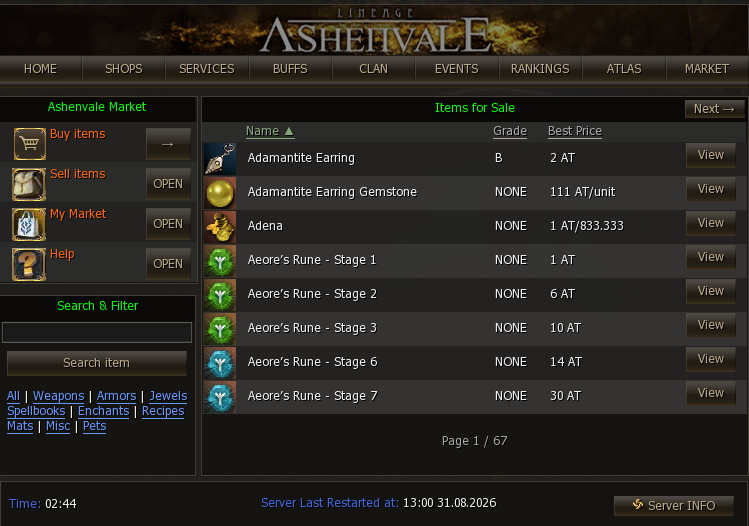
- Buy items shows everything listed, one row per article with its Best Price.
- The search box with filters on the left is the quick way in: type the name or filter by category (Weapons, Armors, Jewels, Spellbooks, Enchants, Recipes, Mats, Misc, Pets).
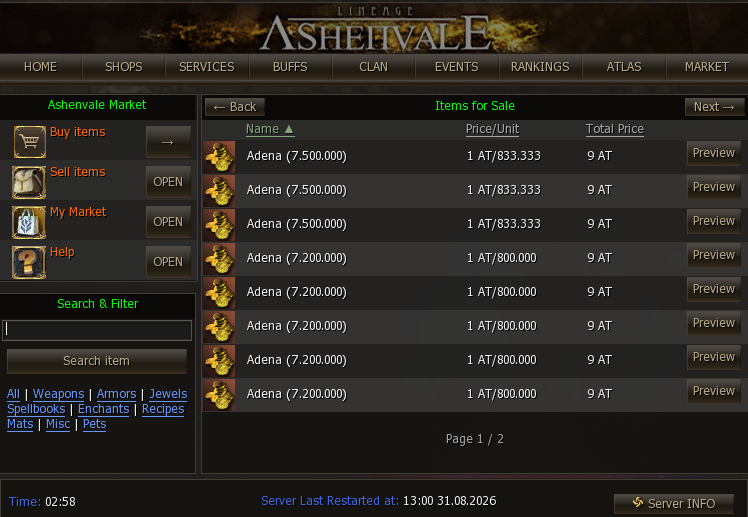
- Opening an article (View) lists every available listing from the different sellers, each with its quantity, its unit price and the total — that is where you pick the best one:
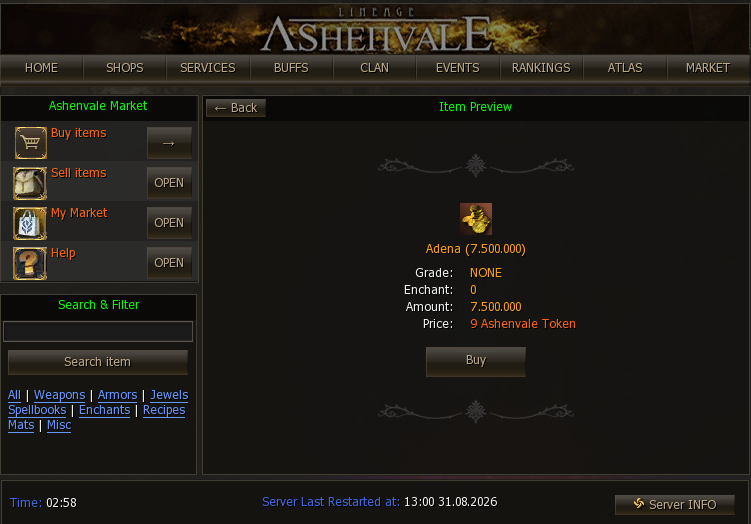
- Preview opens the detail of that listing (grade, enchant, quantity and final price) and from there you confirm with Buy:
Selling: listing an item
Section titled “Selling: listing an item”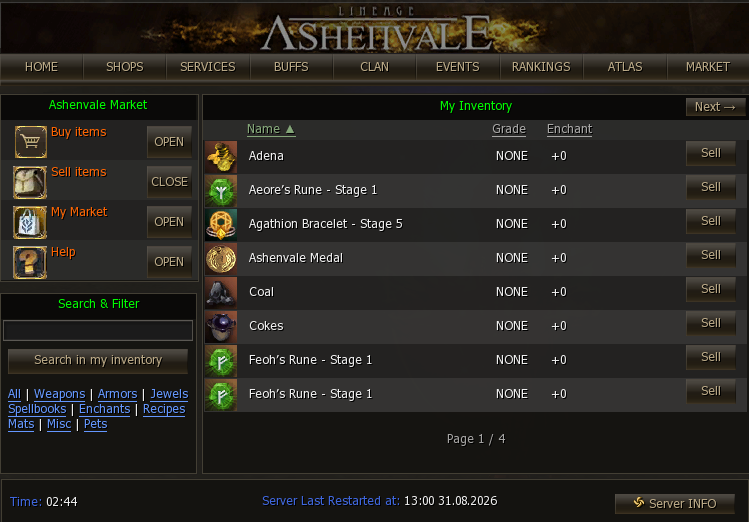
Sell items shows your inventory with everything that can be listed (the tradeable things). From here you pick the item with its Sell button and build the listing — the same search box also works for searching your own inventory.
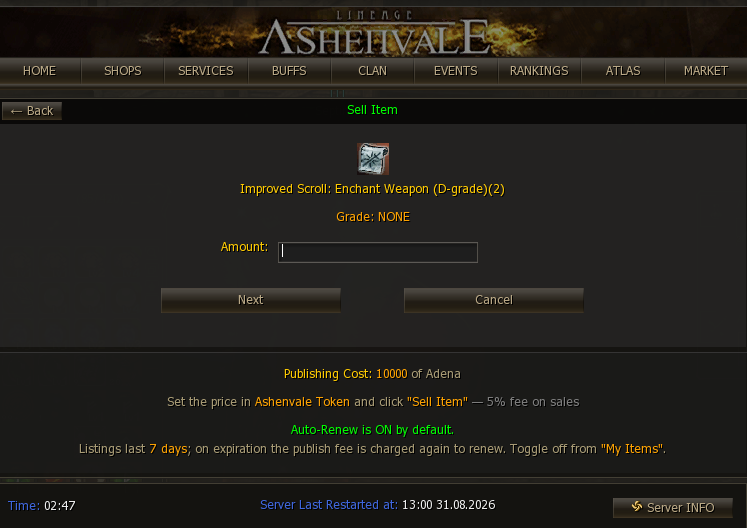
In the listing you set the quantity to sell and the unit price in Ashenvale Token. Before confirming you see the listing cost and the fee that applies to the sale.
My Market
Section titled “My Market”My Market is the list of your own listings, each with its enchant, price and status:
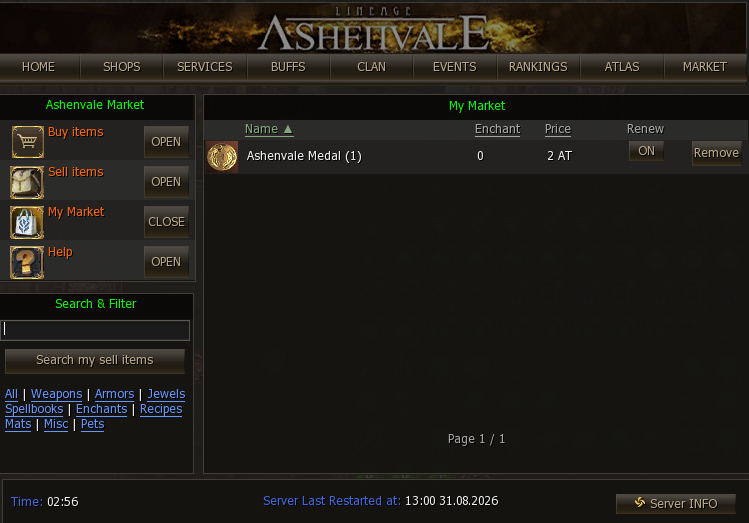
- Remove pulls the listing off the market — if you change your mind, or to change the price: pull it and list it again.
- Each listing’s Renew (ON/OFF) button controls Auto-Renew: worth switching off if you do not want it renewing itself (and charging the listing fee again) when it expires.
The Help button opens the system’s built-in help, with the summary of rules, costs and fees — the same as what is on this page, always at hand inside the game.