


Ashenvale Voice
The Ashenvale client comes with its own voice chat: you talk to your party, your clan or the people around you without Discord or any extra program, and everyone only hears the channel they are in.
In game it is called Ashenvale Voice and it opens with Alt+Z.
Turning it on
Section titled “Turning it on”Voice starts off. The power button on the window turns it on (gold = on, gray = off), and the chat shows the message Ashenvale Voice: ON.
- Mic ON / OFF opens or closes your microphone in the selected channel.
- Mic AUTO is auto-voice: the microphone opens on its own when you speak (it is set up in Settings, further below).
- The window’s X turns voice off and closes the window. Escape only closes it, without turning it off.
- The window can be shrunk to a compact bar with the channel, Voice ON / OFF and the mutes; [ ] expands it again. It remembers its position and how you left it.
| Key | What it does |
|---|---|
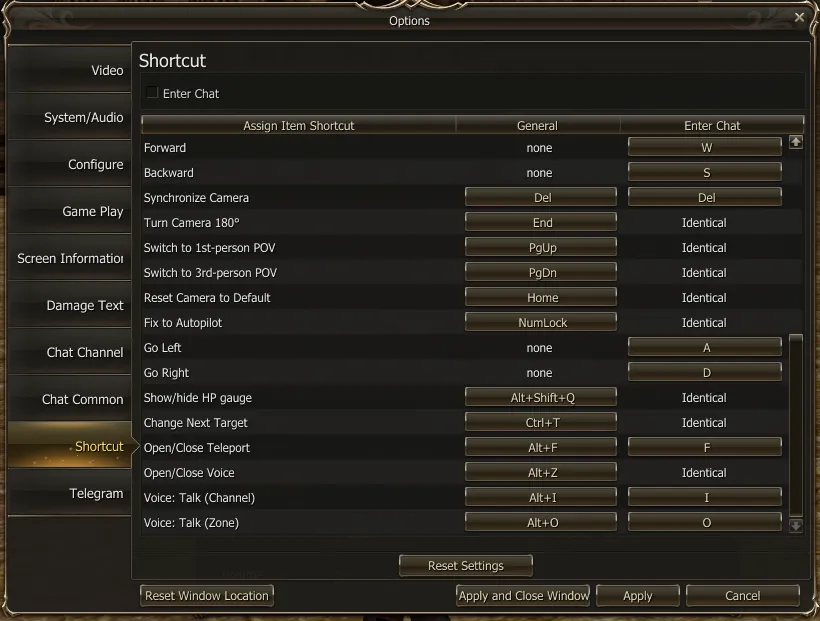
| Alt+Z | Opens and closes the voice window. |
| Alt+I (hold) | Talk (Channel): talks in the selected channel. |
| Alt+O (hold) | Talk (Zone): talks to the people nearby, whatever channel you are in. |
With Enter Chat enabled (Options → Shortcut), I and O on their own are enough.
The keys are changed in Menu → Options → Shortcut, like any other shortcut in the game. From the voice window you can also assign a side mouse button or an extra key; that assignment is saved on your PC.
The channels
Section titled “The channels”| Channel | Who hears you |
|---|---|
| Zone | Whoever is near you, clan or not, in the same instance: loud up close and quieter as they move away. The list shows the 100 closest. |
| Party | Your whole party, wherever they are. |
| Constant Party | Your Constant Party, wherever they are. |
| Clan | The clan. |
| Alliance | The alliance. |
| Command Channel | The Command Channel. Only the leader talks (Speak LOCKED) and gives the floor to others, who get marked with *. |
Hearing Zone from any channel
Section titled “Hearing Zone from any channel”With Zone voice checked (it comes that way by default), you hear the people nearby even while you are in another channel, and you answer them by holding Talk in Zone (Alt+O). If you uncheck it, Zone is only heard and spoken in while you are in the Zone channel.
MAIN and rooms
Section titled “MAIN and rooms”Clan, Alliance and Command Channel have a general channel, MAIN, and rooms: smaller groups where only the people inside hear each other.
- + (with MAIN selected) opens a room: up to 16 letters, numbers, spaces,
-or_. - − (with a room selected) closes it: anyone can if it is empty; leaders, always.
- Join / Leave moves you into the room or back to MAIN.
- Hear Main: while in a room, you keep hearing MAIN.
- If the Constant Party belongs to a clan, it has its own room inside the clan channel: only its members and the clan leaders can join.
Muting and adjusting the volume
Section titled “Muting and adjusting the volume”In each channel the list shows who is there and their status: green talking, yellow connected, red muted.
- Mute and Volume per character change only what you hear.
- Mute all does the same for the whole channel.
- Reset unmutes everyone, sets all volumes to 100 % and sorts A-Z.
For leaders
Section titled “For leaders”-
Talk to: the leader chooses who hears them: My room, the CP leaders or All (MAIN and every room).
-
Sanctions: click a member and check:
- Silence in/out: they cannot talk or listen in MAIN or in the rooms (name in red). Their Constant Party stays open.
- Restrict to Main: only MAIN and their own Constant Party; they show up as (Main).
They stay until a leader removes them, even if the sanctioned player relogs.
-
Who can: in the Clan, the leader and the sub-leaders; in the Alliance, the members of the leading clan; in Command Channel and Constant Party, their leader (in the CP, only silencing).
Settings: microphone, speakers and auto-voice
Section titled “Settings: microphone, speakers and auto-voice”The Settings button opens the devices, volumes, gain and auto-voice.
- Auto-voice: the microphone opens on its own when your level passes the mark on the Level bar. Drag the mark to choose the point: raise it if background noise opens your microphone; lower it if your voice does not open it.
- Noise suppression: removes background noise (fan, keyboard, ambience). With auto-voice, only your voice opens the microphone.
- Echo cancel: keeps what comes out of your speakers from going back in through the microphone. If your voice sounds odd to others, uncheck it (with headphones you do not need it).
The ? button on each screen opens the voice help from that part.
Who is talking
Section titled “Who is talking”While voice is on, a small overlay shows who is talking, with their class mark. It shows whether the window is open, compact or closed.